This post has some details about how to customize the Quick Capture shortcuts I went through in my recent video about capturing notes on various Apple devices.
If you found this without having seen the video, this is the one:
Shortcut Links
Note: I didn’t mention it in the video but the Action Button shortcut can be run from anywhere. It doesn’t have to be connected to the action button on newer iPhones. You could add the shortcut to your home screen, use a Shortcuts widget, or any other option for running a shortcut. It also works on macOS and iPadOS, not just iOS.
Customizing the Quick Capture Menu
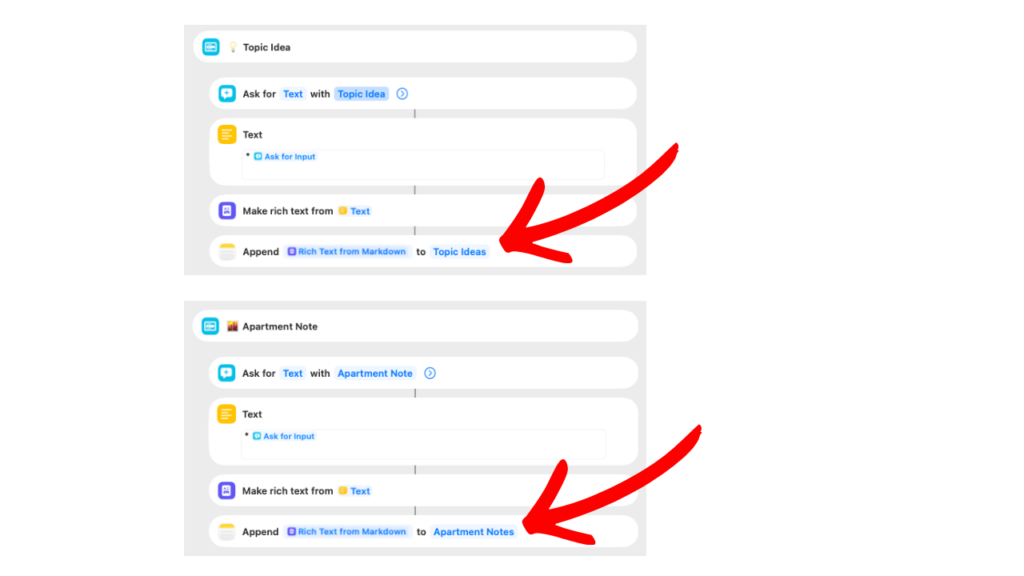
There are several options you can customize with the action button menu shortcut.
Date & Time Formats
I’m using YYYY-MM-DD for the name on my daily notes. I prefer that format because it sorts into a more logical order (grouped by years and months) as more notes get added.
If you prefer a different naming scheme, you can adjust it in the first “Format Date” action in the shortcut:
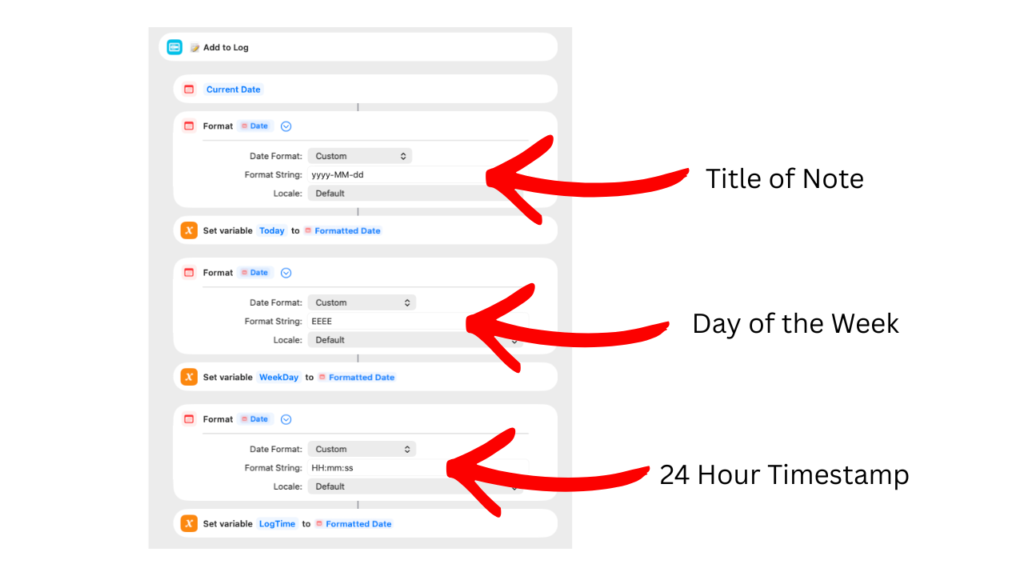
You can adjust it in the Format String field. In this example, it’s set to yyyy-MM-dd which translates to a date like 2026-02-09. There are lots of different options to format the date though.
You’ll find details in the Shortcuts manual and a more complete list on the Unicode #35 standard page.
Make sure you use a format that will create a unique note every day. For example, if you only used MM-dd you would start getting duplicate titles after the first year of daily notes. If you have more than one note with the same name, the daily log action could have problems and log to the wrong note.
The second and third Format Date actions can also be changed if you prefer something different. They’re using format strings based on the information at those links.
EEEE = full name of day (eg. Monday)
HH:mm:ss = 24 hour time reference (eg. 15:33:12)
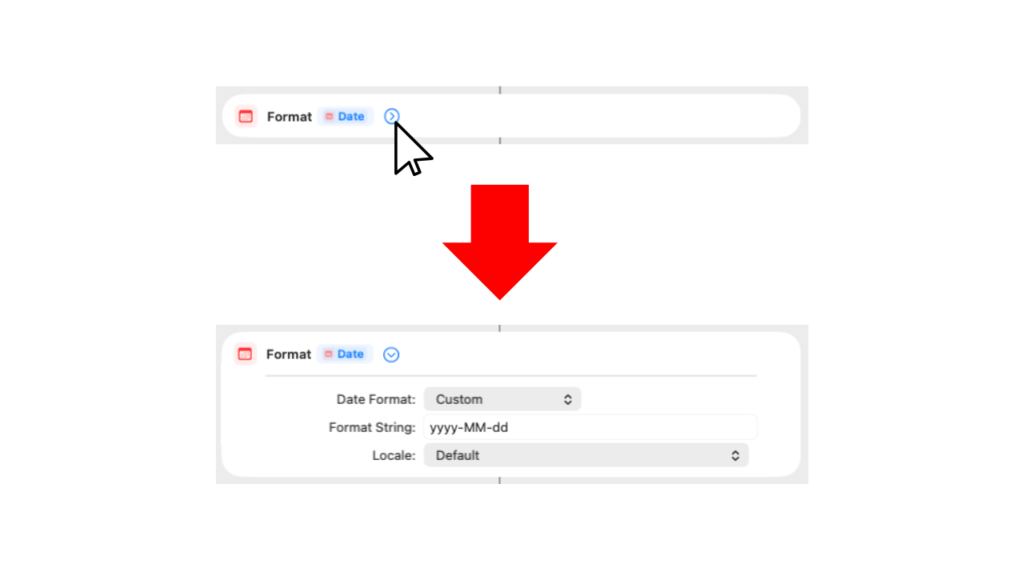
If you don’t see the Format String details after installing the shortcut, click the disclosure arrow to the right of the “Format Date” heading to expand that action.
Note Links
The name of the note used in the Daily Log section of the shortcut is based on the date format you’re using for the name of your daily notes. If you change the date format, it will automatically look for a matching note.
You’ll need to make sure the daily notes folder is set up to match your folder structure though. It’s set in the “Create Note” action:
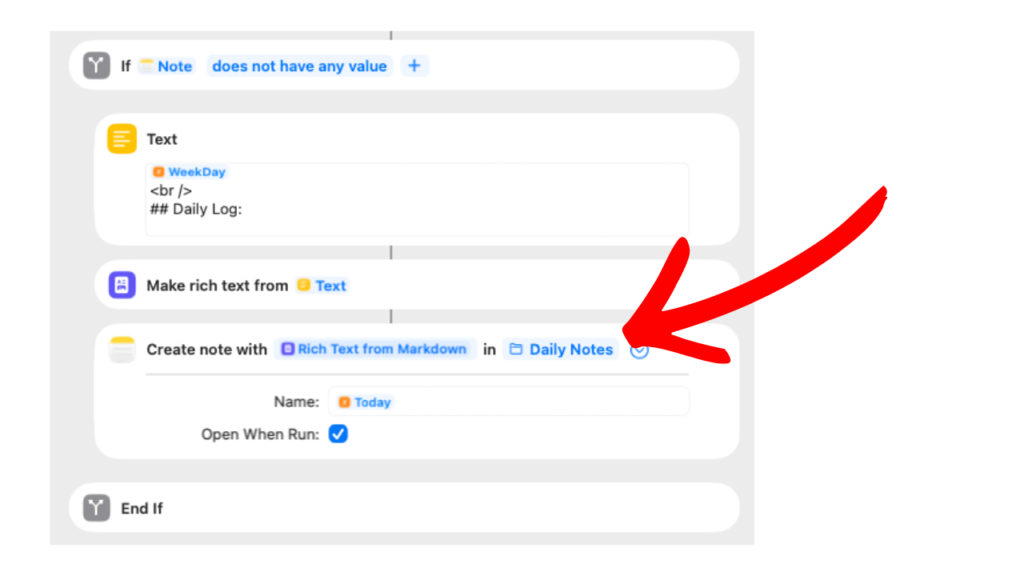
Click the “Daily Notes” link after Create note with Rich Text from Markdown to choose the correct folder for your notes.
The other two examples (Topic Ideas and Apartment Ideas) point to specific notes in my Notes app. You can change those to link to whatever note you want to use by clicking on the name of the note in the Create note with Rich Text from Markdown action.