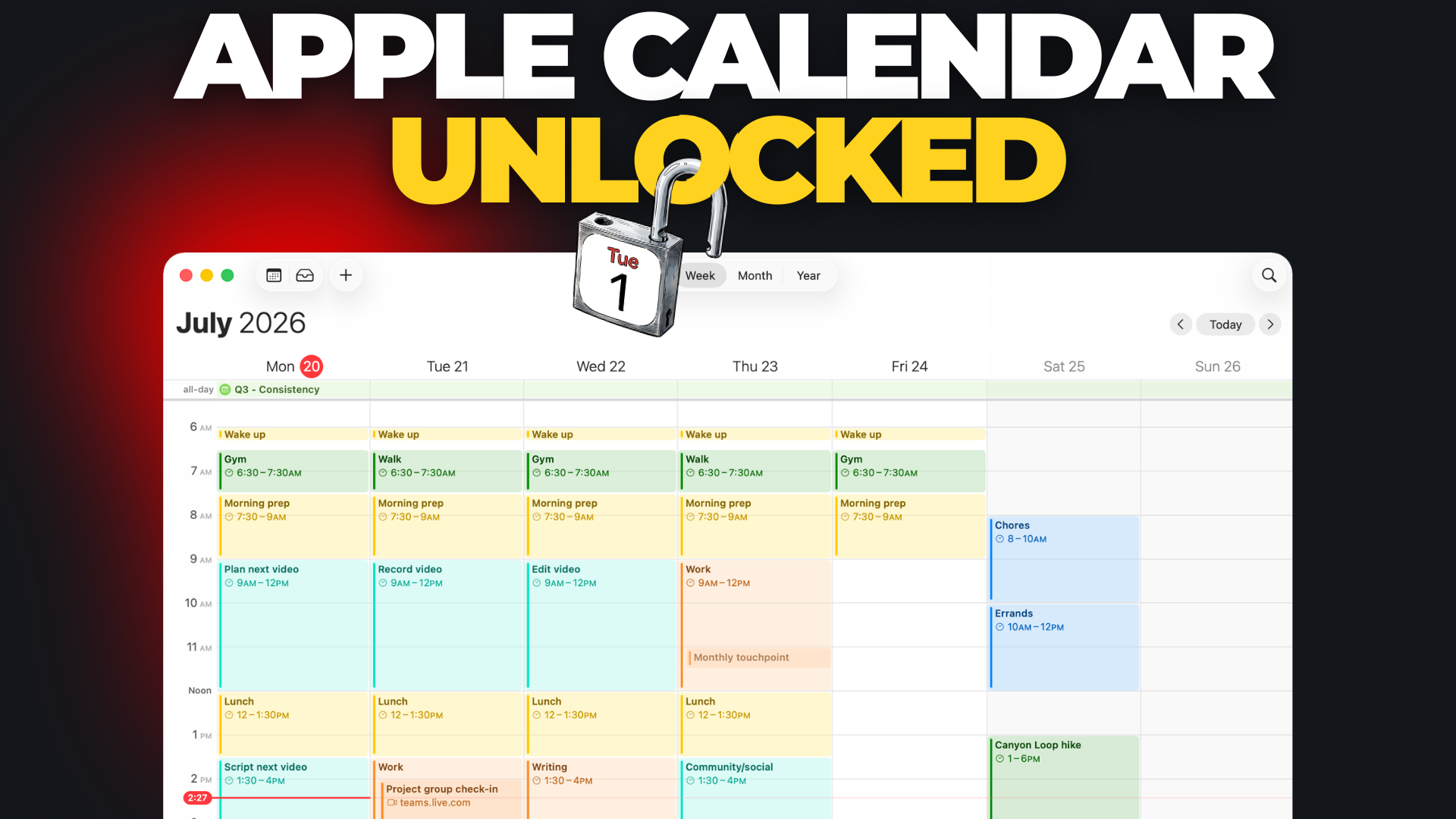
Have you ever opened your calendar and realized it’s basically just a list of commitments that other people put there?
Meetings you didn’t plan…
Deadlines you didn’t schedule…
Nothing on it that protects your time for the work that actually matters.
The calendar isn’t the problem. It’s the setup.
Most people use Apple Calendar with zero configuration, so it ends up being a passive list of events instead of an active planning tool. Here’s how to set it up so it helps you plan your time instead of just reacting to it.
The Two-Week View
My primary view is the weekly view but I don’t actually work from a single week at a time. I prefer to see this week and next week at once.
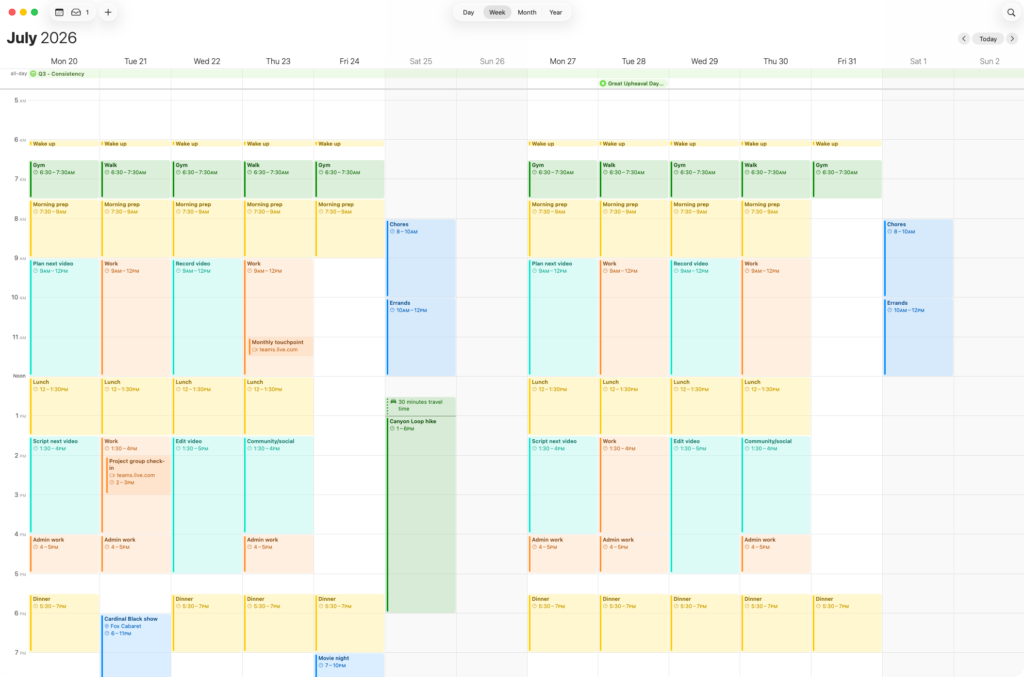
Calendar doesn’t give you that option in the regular settings. You can only choose either 5 days or 7 days per week.
There is a way to get a 2 week view, but it takes a trip into Terminal.
defaults write com.apple.iCal n\ days\ of\ week 14That command updates a hidden preference that controls how many days show up in week view, and sets it to 14 instead of the default 5 or 7. Run it and Calendar will switch to two full weeks at once instead of just one.
Note: I’ve been told it only works on Apple Silicon-based Macs (M3, M4, etc.) and not Intel-based models. I don’t have an older Mac to test with but if you’re on an Intel-based machine, it may not work for you.
This change isn’t permanent. If you ever go back into Calendar’s own settings and pick 5 or 7 days again, that setting takes over. To switch back to 2 weeks, just run the Terminal command again.
A Separate Calendar for Every Part of My Life
I don’t dump everything into one calendar. I’ve split mine into different areas of my life, each with its own color, so I can look at a week and get the whole picture at a glance.
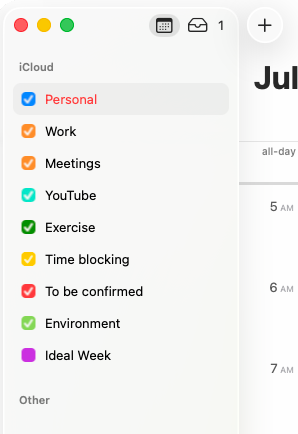
Most of them are self-explanatory. A few are worth explaining though.
Time Blocking. This is for routine stuff I do every day – morning prep, meals, etc. None of it is a real commitment. I could technically do any of it whenever I want. But I like seeing that time marked out so I know it’s accounted for.
Having my lunch break blocked off is particularly helpful for me. I’m prone to just working through the day if I don’t have some kind of visual nudge telling me it’s time to stop and take a break.
To Be Confirmed. Anything tentative goes here, in its own color, so it stands out. If something’s on my calendar but hasn’t been locked in yet, I want to see that the second I glance at the week. If I see something in red, I know I need to follow it up.
Environment. I picked this up from a podcast years ago, and I wish I could remember which one to give proper credit. I use it for things that I want to be aware of but aren’t really part of my schedule. Holidays, big-picture items, background events, etc.
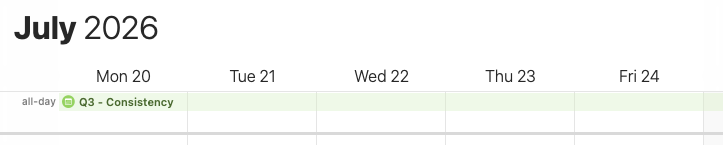
For example, I have an entry that highlights my focus for the quarter. For Q3 in 2026, that’s Consistency – publishing on a regular schedule, getting into a regular exercise routine, and so on. It stretches across the whole quarter so I see it every single day, and it helps keep me focused on what matters.
Setting a Default Calendar
If you’ve only got one calendar, everything you add goes into it. Once you’ve got several, you need to tell Calendar which one is the default.
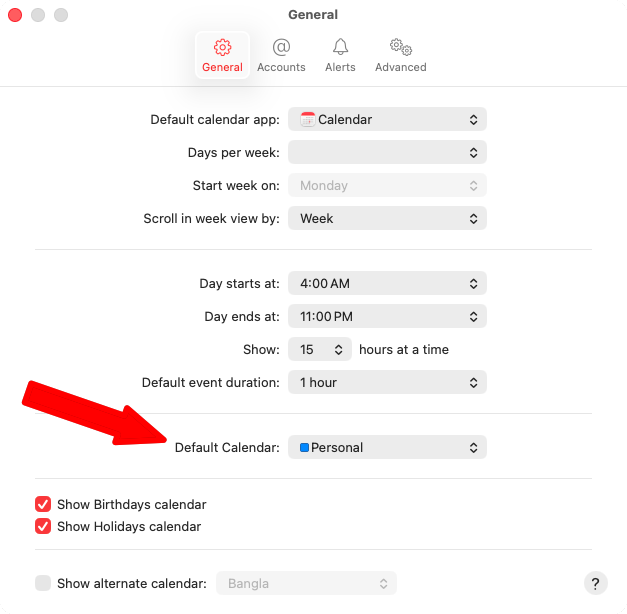
You’ll find this in Settings for Apple Calendar, in the Default Calendar option.
Week View vs. Month View
The week view (with the 2 week trick) is where I do my actual planning – daily reviews, weekly reviews, etc.
Month view serves a different purpose. I use it to see how packed any given day is.
If I’m doing monthly planning and I need to find time for a project, month view makes it obvious at a glance where the open space is.
This is where turning off certain calendars can help. To hide a calendar, just uncheck it in the list of calendars in the sidebar.
I don’t need to see Time Blocking or Environment entries when I’m scanning for open time, I just want to see actual commitments. Looking at it with those entries removed, it only takes a glance to see which day has the most room to work with.
Two Types of Calendar Entries
I have two types of entries on my calendar.
The first is specific-time commitments – a meeting, a concert, an appointment. If you’re not there at the scheduled time, that’s it. There’s no doing it later.
The second is more of a “work session” than an event. Things like “plan next video” or “work on project X” aren’t fixed appointments. I’m not meeting anyone or doing something that requires me to be there at a specific time. I’m just blocking three hours on a Monday morning to get something done.
That block is a lot more flexible. If I wake up late or something comes up, it can move. The actual list of what I’m doing during that block lives in my task manager, not on the calendar itself. The calendar just protects the time.
It also helps surface imbalances. If I look at a week and only see one block of content-creation time, I know I haven’t scheduled enough of it to actually get something made.
This is one of the benefits of giving each calendar its own color. It’s easy to see if one color has too much or too little time compared to the others.
Getting More Out of Each Entry
There’s a lot of options once you start digging into individual entries.
Location and alerts. Add an address to an entry and Calendar can alert you when it’s time to leave.
Recurring events. Double-click an entry to open the details, click on the time to expand the scheduling options, and you can set it to repeat daily, weekly, or on whatever schedule makes sense.
Travel time. This is the one I use the most. Set a travel time on an entry and Calendar adds that buffer to the front of it as a dotted block without shifting the actual start time of the event.
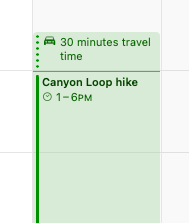
I used to pack my calendar so tight that I was constantly scrambling to get to things on time. This fixes that.
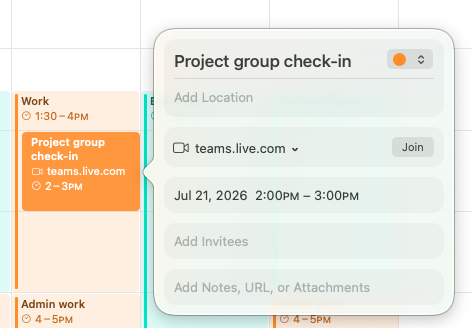
Meeting links. Paste in details from a video call (Zoom, MS Teams, etc.) and Calendar recognizes it and adds a Join button right on the entry. No digging through email to find the link.
Connecting Calendar to Reminders and Notes
This is where Calendar stops being its own island and starts tying into the rest of your system.
Under Other Calendars, there’s an option to show your scheduled Reminders directly in Calendar. Turn it on and you’ll see the tasks that are due that day right alongside your events.
I don’t personally work this way. I prefer to keep tasks in my task manager, where that’s the only thing I’m focused on when I’m working through them. But if you want a single view for everything happening in a day, Calendar gives you that option.
You can also link a Calendar entry straight to a related note. Paste a note’s link into an event, and clicking it takes you right to that note. This is useful for something like project notes or a recurring meeting where you keep one running note with an agenda and notes from each session.
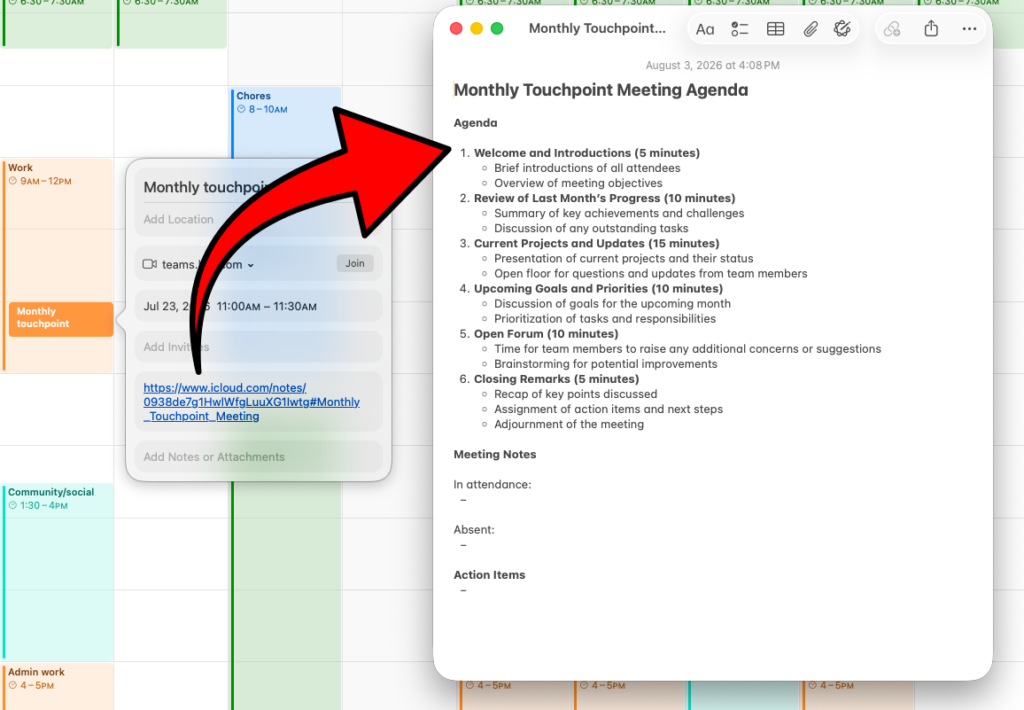
Unfortunately, you can’t share a note into Calendar from inside Notes itself. There’s no drag-and-drop, no share-sheet option. You have to grab the link and paste it into the Calendar entry manually.
Once it’s set up, though, everything talks to everything. Your task list feeds into your day through Reminders. Your calendar entries connect out to the notes that back them up. You can genuinely run your whole day from Calendar if you want to.
The Result
Put all of this together and your calendar becomes an active tool that helps you run your week – instead of the other way around.
If you want to see this in action, I go through it step-by-step in this video: